Obtaining SuperLive Cookie on PC/Mac
Recording a SuperLive broadcast needs a session credential from your own SuperLive account. The StreamKeepr Helper extension for Google Chrome reads that credential out of your logged-in session and copies it as a single JSON bundle: an Auth Token plus the Device ID, Client Params, RTC ID and Agora App ID that go with it. The mini app calls that bundle the SuperLive Cookie.
Before You Start
Three things. Google Chrome on a PC or Mac - StreamKeepr Helper is a desktop Chrome extension, so this cannot be done from a phone. A SuperLive account you can log in to on any of the nine supported domains. And a subscription plan that includes SuperLive recording, since SuperLive is not part of the free tier. If you are not sure about the plan, check Tango Live Recorder Plans, Tokens & Recording Slots first - the cookie is no use without one.
Step by Step: Copying Your SuperLive Cookie
Install StreamKeepr Helper from the Chrome Web Store, then pin it to the toolbar so the popup is one click away.
Open any SuperLive domain - superlive.chat, liveflamingo.com, monkeylive.chat or any of the others - and log in to your account.
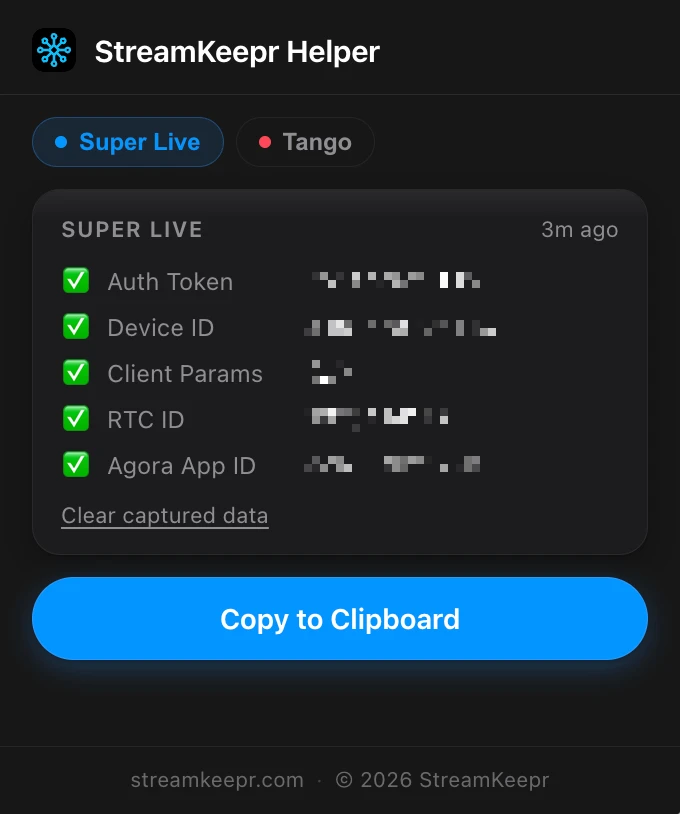
Open a live broadcast and let it play for a few seconds, then click the StreamKeepr Helper icon. On the Super Live tab you should see five green checks - Auth Token, Device ID, Client Params, RTC ID and Agora App ID - with a note of how recently they were captured. Press Copy to Clipboard.
Open @TngRecordsBot in Telegram and paste the bundle into Settings → Cookies → SuperLive Cookie. That is it - the credential is saved to your account and you can start recording.
If the Extension Shows No Data
An empty popup, or fewer than five green checks, almost always means the extension has not seen the right requests yet. Make sure a broadcast is actually playing - some of the values (RTC ID, Agora App ID) only appear once a live stream starts, not from browsing the site. Check that the popup is on the Super Live tab, since each platform is captured separately. If the values look stale, press Clear captured data, reload the broadcast page and open the popup again. And if you log out of SuperLive or the session expires, the saved cookie stops working - repeat these steps and paste the fresh bundle over the old one.
Next Steps
With the cookie saved, Record SuperLive Streams — LiveFlamingo, MonkeyLive & More covers what to do with it: every supported domain, recording by link, and how Following auto-records a SuperLive streamer the moment they go live. If recording is still refused after pasting the cookie, the plan is the usual reason - see Tango Live Recorder Plans, Tokens & Recording Slots.
FAQ
- Which browsers does the extension work in?
- StreamKeepr Helper is published on the Chrome Web Store, so it installs in desktop Google Chrome and other Chromium browsers that accept Chrome Web Store extensions, such as Edge, Brave and Opera. There is no mobile version - Chrome for Android and iOS do not support extensions.
- What exactly does the extension capture?
- Five values from your logged-in SuperLive session: the Auth Token, Device ID, Client Params, RTC ID and Agora App ID. Copy to Clipboard puts all five into your clipboard as JSON, which is exactly what you paste into the bot.
- Does the SuperLive Cookie expire?
- Yes. It is a session credential, so logging out of SuperLive or letting the session lapse invalidates it and recordings start failing. Repeat the steps in this guide and paste the new bundle over the old one in Settings → Cookies.
- Can I get the auth token on my phone?
- Yes, on Android. StreamKeepr Helper is also published for Firefox for Android, so you can capture the cookie straight from your phone - see [Obtaining SuperLive Cookie on Android (Firefox)](/en/guides/superlive-cookie-android). Chrome for Android and iOS still cannot install extensions, so on those you need a PC or Mac. Once the cookie is saved, recording and Following work from Telegram on any device.